Quote
Hi there, happy to see you there, I just start the holiday in my country, so spend a bit time in weekend to chill out and learn couple things. I figure out one problem in Kubewekend Cluster, we use
kindand it’s tricky a bit when we do more stuff to handout with CSI, I don’t deny any thingkinddo for community, it’s truly crazy but sometime we need to consider another to hangout with good potentials and easier to setup,RKEandK3Smaybe save us some points today. Let’s digest
The Actual Problem of Mine

If you work with kind, you will figure out how hard to setup a couple of core Kubernetes features with this platform
- High Availability (HA) - Default the concept
kindwill provision your K8s Cluster depend on initialization filekind-config.yaml, but you can walk through a bit concept to retrieve that but it ain’t gonna easy, like expand manually viajoin-nodeformasterorworker. Read more at Kubewekend Session 5: Build HA Cluster - CSI (Container Storage Interface) - The second challenge when use
kindis about storage, you can bring up the popular concept intokindcluster but some situation that not work well becausekindrun inside docker, and you need to setup another layer in this layer, in some situation that pretty hard for control (NOTE: 100% you will stuck in this step a bit). Find more about conceptual with Kubewekend Session 6: CSI and Ceph with Kubewekend and Kubewekend Session Extra 1: Longhorn and the story about NFS in Kubernetes
But I don’t deny anything what incredible kind bring up for us, if I want to testing not relate to CSI and add more node, kind is always top 1 in my mind, that pretty provide a good environment for experiment, simple and clear to define any structure deployment in Kubernetes.
If you wanna find the solution storage for kind, I really recommend you for using
- Kind’s Default
standardStorageClass - This uses the built-in Local Path Provisioner - CSI Hostpath Driver - If you really need CSI features
- If you find to NFS Server, you can try csi-driver-nfs and nfs-subdir-external-provisioner
BTW, there some another candidates pop up in my mind, and it will try solve some problems not convenient of kind, let’s read a couple of articles to explore
- K0s Vs. K3s Vs. K8s: The Differences And Use Cases
- Minikube vs. Kind vs. K3s
- Medium - Simple Comparison of Lightweight K8S Implementations
RKE2 and K3s are both great choices when you want to use full compatibility Kubernetes in host, it means this will optimize for you setup storage, HA, CSI with good behavior than kind
RKE2
Info
RKE2
RKE2 is Rancher’s enterprise-ready next-generation Kubernetes distribution. It is a fully conformant Kubernetes distribution that focuses on security and compliance within the U.S. Federal Government sector.
A couple of special features of RKE2, we will have
- Security and Compliance Focused
- Simple Installation and Operation
- Containerd Runtime
- Static Pods for Control Plane
- Close to Upstream Kubernetes
- Embedded etcd
- Designed for Various Environments
- Based on Lessons from K3s
I happen to use RKE2 because it’s the cluster type used at my job. I find that RKE2 offers stable configuration and comes with enough defaults to quickly set up a fully compatible cluster. However, I’m not completely sold on it because it has a lot of aspects to consider, though it’s not a big problem, like
- Require Certificate rotation after 365 days: Because security compliance, it requires you for rotation the certificate for enhancing the security
- Requirement a bit techniques for debugging in Linux, especially
systemdto finally understand what happen withrke2 - A couple of tricky in configuration to successfully provision
RKE2, especially for GPU Machine - Must fully managing both
RKE2 ServerandRKE2 Agent, that’s pretty fun but sometime that cause you a lot of stuff. That’s why It will require you a bit hardware to configureRKE2
Quote
But like I said, that’s not a big deal when you use RKE2. You end up with a complete Kubernetes cluster that’s well-behaved, stable for production, and has a large community for support. If you’re just a little careful when you work with RKE2, your cluster will run well, trust me! 😄
Now coming with me to see around about RKE2 Architecture
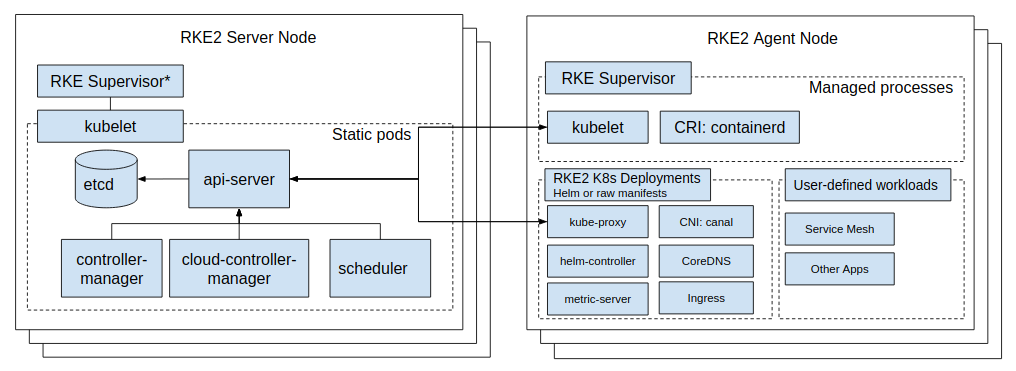
RKE2 seem like enough things for us to do great stuff with enterprise environment, such as
- Have both
Serverfor control plane, etcd or api-server andAgentfor K8s Workloads, that makeRKE2seem clearly task responsibility for each components - Run container with
containerdruntime, that will become standard CRI of containerization world, bring a good performance, lightweight and remove complexity layer compare with another runtime, likeDocker - We have
etcdfor embedded cluster datastore, 🤔 I don’t likeetcdbecause not actually dive into this much but not deny the enormous feature and compatibility withRKE2. Explore more about etcd client architecture and etcd versus other key-value stores
Nowadays, RKE2 is supporting into version 1.32 (Following closest the Kubernetes Native version, it’s really impressive), check some version down below
K3s
Info
K3s
K3s is Lightweight Kubernetes. Easy to install, half the memory, all in a binary of less than 100 MB and It’s a fully compliant Kubernetes
With such a great features, including
- Distributed as a single binary or minimal container image.
- Lightweight datastore based on sqlite3 as the default storage backend.
- External dependencies have been minimized; the only requirements are a modern kernel and cgroup mounts.
- Packages the required dependencies for easy “batteries-included” cluster creation
- Wrapped in simple launcher that handles a lot of the complexity of TLS and options.
- Secure by default with reasonable defaults for lightweight environments.
- Operation of all Kubernetes control plane components is encapsulated in a single binary and process, allowing K3s to automate and manage complex cluster operations like distributing certificates.
If you’re searching for a lighter version of Kubernetes that’s easier to control and has fewer moving parts, but still gives you all the core Kubernetes capabilities, K3s is a fantastic option to begin with. I’ve seen many tutorials that use K3s to get a self-hosted Kubernetes environment up and running quickly, which is why I’m suggesting it. You can find a detailed setup guide in Khue Doan’s homelab repository on GitHub: GitHub - khuedoan’s homelab (Big shoutout to Khue Doan for putting together such a useful starting tutorial for anyone wanting to build a homelab with K3s! 🙌)
Lemma bring you to check around K3s Architecture
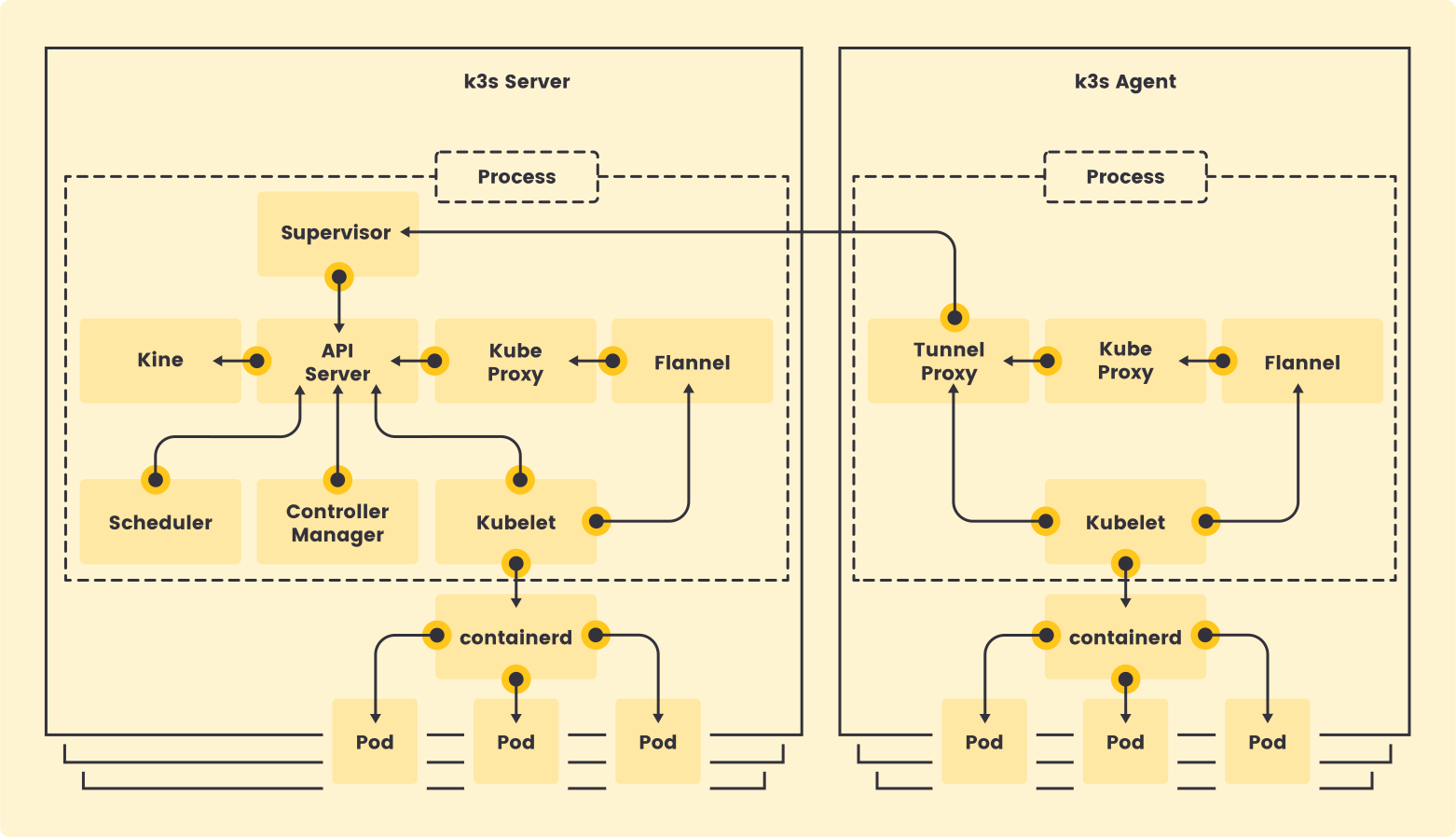
As you can see, K3s is pretty clear but cover a bunch of concepts of Kubernetes
- Able to self-hosted both
ServerandAgent - Use
Containerdfor container runtime - Like
RKE2,K3soffer us two type selfhosted with only Server and HA Cluster, but you can have another options instead of embedded DB withetcdwith ExternalDB, likePostgreSQL,MySQL, …
K3s also follow closer version with Kubernetes upto V1.32, you can find version at
So why we have K3s and RKE2
Info
Following the documentation of RKE2, They try to give us more information about two type of Kubernetes because
RKE2is the highest version, with combination ofRKE1andK3s
Here’s a table highlighting the key differences between K3s and RKE2:
| Feature | K3s | RKE2 (Rancher Kubernetes Engine 2) |
|---|---|---|
| Primary Goal | Lightweight, easy to use, ideal for edge, IoT, and development. | Security and compliance focused, enterprise-ready, suitable for government and regulated industries. |
| Security Focus | Secure by default with reasonable defaults. Smaller attack surface. | Strong focus on security: CIS Benchmark hardening, FIPS 140-2 compliance, regular CVE scanning. |
| Upstream Alignment | May deviate slightly from upstream to achieve its lightweight goals. | Aims for closer alignment with upstream Kubernetes. |
| Default Datastore | SQLite (embedded), with options for etcd, MySQL, and PostgreSQL. | etcd (embedded). |
| Container Runtime | containerd (default), can be configured with Docker. | containerd (default), Docker is not a dependency. Control plane components run as static pods managed by kubelet. |
| Binary Size | Very small (< 100MB). | Larger than K3s due to added security features and components. |
| Resource Footprint | Minimal, designed for resource-constrained environments. | Higher than K3s due to added security and enterprise features, but still relatively lightweight compared to full Kubernetes. |
| Use Cases | Edge computing, IoT devices, single-node development, homelabs, CI. | Enterprise environments, government sectors, regulated industries with strict security and compliance requirements, multi-cloud, edge, and on-premises deployments. |
| Complexity | Simpler to install and manage, fewer moving parts by default. | More configuration options for security and advanced features, might have a slightly steeper learning curve than basic K3s setup. |
| Cloud Provider Integration | Strips out in-tree cloud providers, relies on out-of-tree (CCM). | Includes support for cloud provider integrations. |
| Storage Provisioning | Local Path Provisioner included by default. Relies on CSI for more advanced storage. | Supports in-tree storage providers and CSI. |
| Target Audience | Developers, hobbyists, users with resource-limited environments. | Enterprises, government agencies, security-conscious organizations. |
You can choose what ever you want, but need to consider a bit things to make a good decision
- Choose K3s when you need a lightweight and easy-to-use Kubernetes distribution, especially for edge computing, IoT, or local development. It prioritizes simplicity and low resource consumption.
- Choose RKE2 when security and compliance are paramount, and you need an enterprise-ready distribution that aligns closely with upstream Kubernetes. It’s designed for more regulated and mission-critical environments.
The alternative version
If you wanna find to setup fully compliant Kubernetes Cluster, there are few options for choosing, include
- Kubeadm - A CLI Tool helps turn your host into Kubernetes Cluster
- talos - A modern Linux distribution built for Kubernetes.
- K0s: k0s is an open source, all-inclusive Kubernetes distribution, which is configured with all of the features needed to build a Kubernetes cluster.
- Moreover solution to operate Kubernetes out there
Learn and take note about RKE2

Quote
When you self-hosted
RKE2, you should follow documentation that covered a lot of stuff to follow, but in some case, you need to know a bit tricky to finish configuring the Kubernetes Cluster
A couple of useful documentations should be taken care
- RKE2 - Quick Installation
- RKE2 - High Availability
- RKE2 - Advanced Options and Configuration
- RKE2 - Configuration Options
- RKE2 - Upgrade
- RKE2 - Uninstall
Installation RKE2
Following the documentation, we’ll encounter two types of self-hosted RKE2 clusters:
- Normal Cluster: This configuration consists of one master node and multiple worker nodes.
- High Availability (HA) Cluster: This setup requires two or more master nodes (ideally an odd number for quorum) and multiple worker nodes.
Let’s delve into normal version, you can read RKE2 - Quick Installation and hand on following this concept, I will try to describe behavior each step
-
To prepare your host for RKE2 installation, you’ll need to update and install a few essential components, ensuring your system meets the RKE2 requirements.
💡 Note: I highly recommend using Ubuntu 22.04 as your operating system for setting up RKE2, as it tends to result in fewer installation errors.
sudo apt update sudo apt install curl wget nano -y -
Next, we will use
curlcommand to interact with script fromRKE2to install RKE2 Server or Agent with couple of variables need to consider# Version used by me, e.g: v1.28.9+rke2r1 or v1.27.11+rke2r1 # Install Server curl -sfL https://get.rke2.io | INSTALL_RKE2_VERSION="xxx" sh - # Install Agent curl -sfL https://get.rke2.io | INSTALL_RKE2_TYPE="agent" INSTALL_RKE2_VERSION="xxx" sh -If you inspect the script at https://get.rke2.io, you will see some environment for setting this script and you should care about
INSTALL_RKE2_TYPE: Type of rke2 service. Can be either “server” or “agent” (Default is “server”)INSTALL_RKE2_VERSION: Version of rke2 to downloadINSTALL_RKE2_CHANNEL: Channel to use for fetching rke2 download URL (Defaults to ‘stable’)
This step will cover whole step to setup
systemdforrke2-server,rke2-agentand prepare manifest, artifact for initialization yourrke2 -
With the normal cluster, you just need only start
rke2-serverif you set up master node after previous completesudo systemctl enable rke2-server sudo systemctl start rke2-server💡 Note: Wait for 30 seconds to 1 minute; sometimes it might take longer, but don’t worry. After this period, you can check the service status to see if it’s running
# Use systemd
sudo systemctl status rke2-server

# Use journalctl
sudo journalctl -xeu rke2-server -f
If your
rke2-serveris running and shows no errors in its logs, you can configure the agent to join the cluster. First, you’ll need to retrieve the node-token from/var/lib/rancher/rke2/server/node-token.cat /var/lib/rancher/rke2/server/node-token -
Now, you can turn around to step 2 to install the RKE2 agent on your new node. The installation process is similar to the server installation, but you’ll run the agent-specific command.
# Default Agent will not exist this PATH, you should create
mkdir -p /etc/rancher/rke2

# Use nano or vim to edit config.yaml in this PATH
nano /etc/rancher/rke2/config.yaml
You should read two of these, Server Configuration Reference and Agent Configuration Reference
/etc/rancher/rke2/config.yaml # Requirements server: master-server # e.g: https://<ip>:9345 token: master-token # master token for joining cluster node-ip: ip-server # IP address of agent # Optional node-label: - "env=dev"Afterward, you can turn on the agent, and you can check the health of your agent with
kubectlcommand# Enable RKE2 Agent Service sudo systemctl enable rke2-agent # Start the RKE2 Agent sudo systemctl start rke2-agentLike I told, you can check the status, like logs or health of agent via
kubectlor directly viajournalctlcommand# Get node for check the state kubectl get nodes # Get log of service sudo journalctl -xeu rke2-agent -f
Info
This way is kinda simple because I just follow the same behavior with documentation to start normal Cluster. But if you setup HA Cluster, you can double check in next part
Setup RKE2 High Availability
For production, the high availability is required and RKE2 let us operate this option, explore more at RKE2 - High Availability
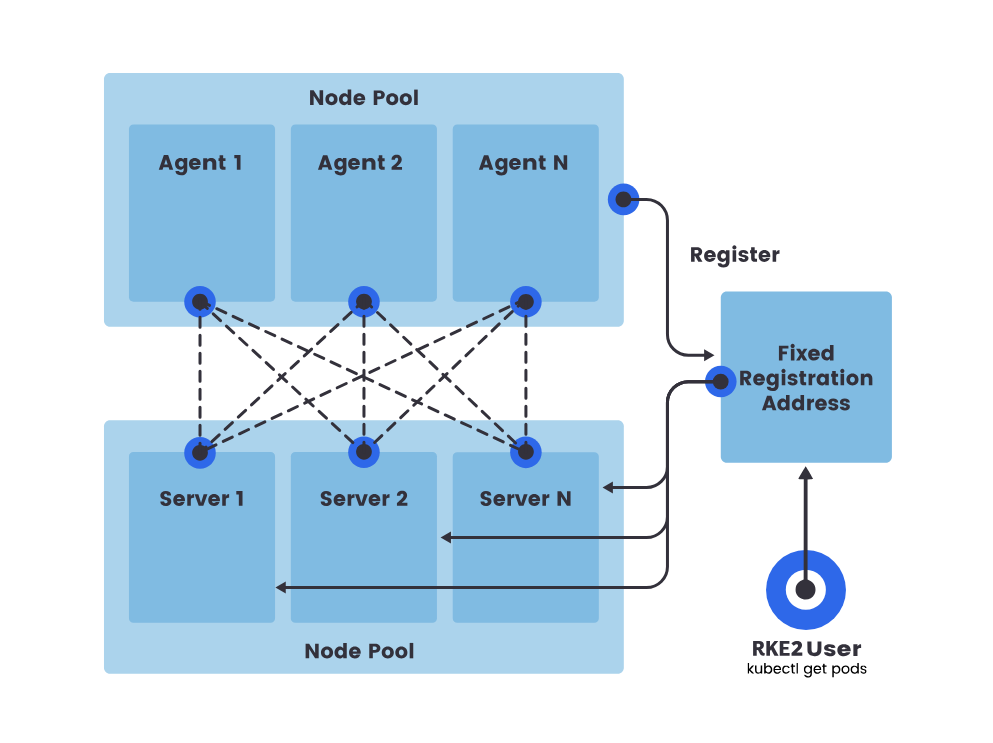
As you can see, RKE2 build up the HA Solution depend on Raft Architecture, which will have
- A fixed registration address that is placed in front of server nodes to allow other nodes to register with the cluster
- An odd number (three recommended) of server nodes that will run etcd, the Kubernetes API, and other control plane services
- Zero or more agent nodes that are designated to run your apps and services
Info
etcduses the Raft algorithm, which requires a quorum (majority) of nodes to agree on changes. To guarantee quorum even when some servers are down, you need an odd number of server nodes in youretcdcluster.This odd number allows the cluster to tolerate the failure of a minority of nodes without losing its ability to make decisions. For example, in a 3-node cluster, one node can fail. In a 5-node cluster, two can fail. While adding more odd-numbered nodes increases the fault tolerance (more failures can be handled), it also increases the total number of nodes that are potential points of failure.
You can read more about what is Raft algorithm and how can etcd setup articles below
BTW, I will share more about etcd in another blogs, but lemme focus on RKE2 HA Setup with some steps, following
- Configure a fixed registration address
- Launch the first server node
- Join additional server nodes
- Join agent nodes
Info
For a consistent Kubernetes environment, you need a stable endpoint in front of your server nodes. This is why you should set up a fixed registration address for the servers.
Success
When you already turn on the sever for fixed registration, you can use
node-tokento join for bothserverandagentinto this server to create HA Cluster
Setup GPU Worker 🌟
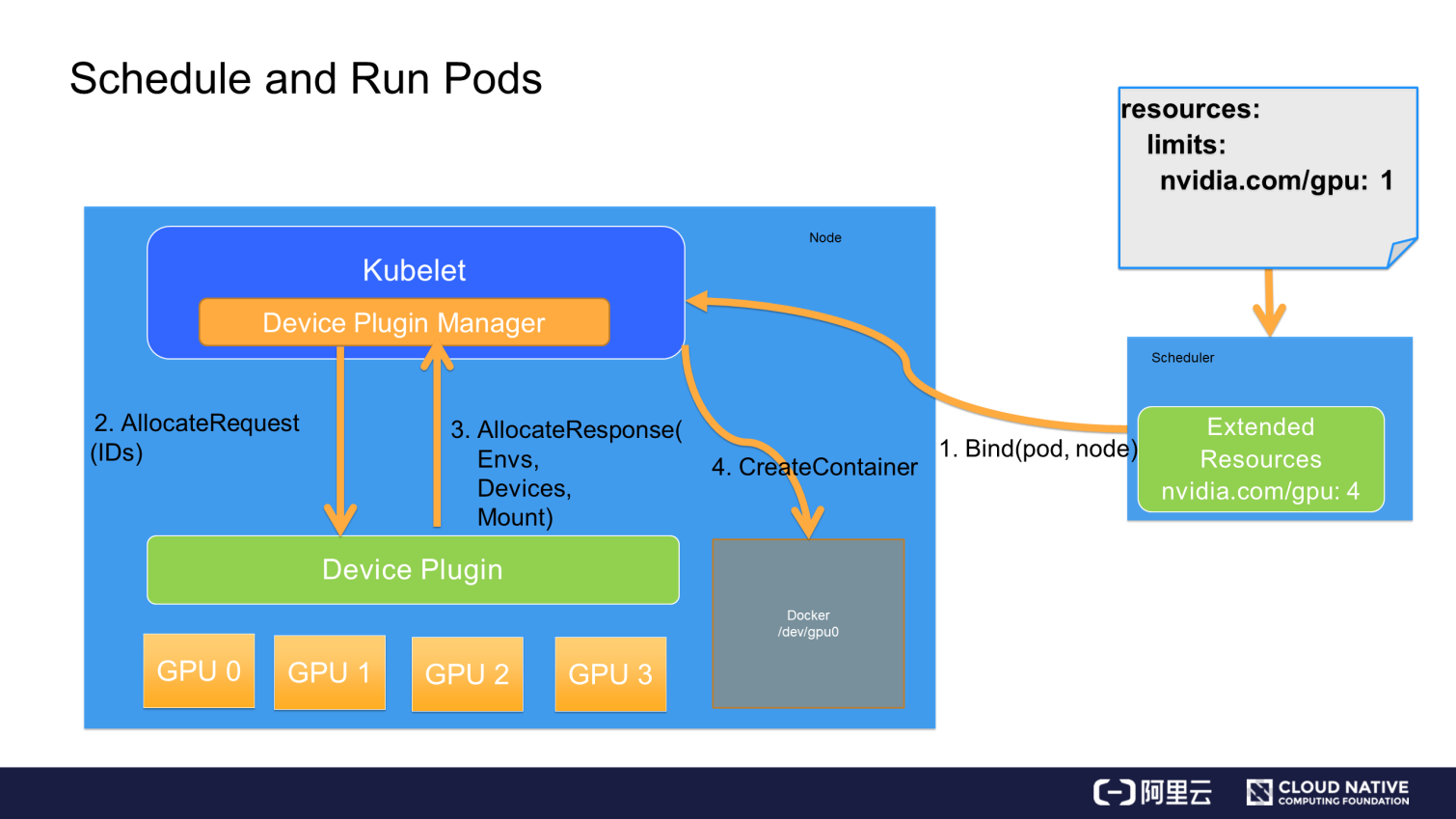
To set up an RKE2 worker node with a GPU, you’ll need to establish the necessary bridge or driver for the RKE2 Agent to interact with the graphics card via the Kubernetes layer. For this, you should double-check the following resources
- Nvidia - Installing the NVIDIA GPU Operator
- Nvidia - GPU Operator with MIG
- Nvidia - Time-Slicing GPUs in Kubernetes
- Nvidia - Using NVIDIA vGPU
- Youtube - Timeslicing, MPS, MIG?HAMi!K8s GPU 虚拟化中缺失的一块拼图
- Linkedin - A Deep Dive into NVIDIA GPU Virtualization: Passthrough, MIG, vGPU, and Time-Slicing
- GitHub - gpu-operator - NVIDIA GPU Operator creates, configures, and manages GPUs in Kubernetes
- RKE2 - Deploy NVIDIA operator
- HAMI - Installation with Helm
- GitHub - KAI-Scheduler - An open source Kubernetes Native scheduler for AI workloads
First of all, you need to install driver of your card in your host, and with Ubuntu, you can directly download from apt package or use ubuntu-drivers for finding compatible version
# CAUTION: THIS CAN'T WORK AT ALL SO ALWAYS REMEMBER
# You should choose ubuntu 22.04 or 20.04 for stable installation
#!/bin/bash
# Update an install couple of needed packages
sudo apt update
sudo apt install g++ freeglut3-dev build-essential libx11-dev libxmu-dev libxi-dev libglu1-mesa libglu1-mesa-dev -y
# Add repository and key for finding the graphic-card driver in APT
sudo add-apt-repository ppa:graphics-drivers/ppa -y
sudo apt-key adv --fetch-keys https://developer.download.nvidia.com/compute/cuda/repos/ubuntu2004/x86_64/3bf863cc.pub
echo "deb https://developer.download.nvidia.com/compute/cuda/repos/ubuntu2004/x86_64 /" | sudo tee /etc/apt/sources.list.d/cuda.list
# Run update repository endpoint and install nvidia-driver-535
sudo apt update
sudo apt install libnvidia-common-535 libnvidia-gl-535 nvidia-driver-535 -yRemember, you can double-check these source exists or not for your distribution version
- https://nvidia.github.io/libnvidia-container
- https://developer.download.nvidia.com/compute/cuda/repos/
Warning
You’ll need to find a driver compatible with your specific graphic card and GPU workloads. This driver, along with a device plugin, is absolutely crucial for Kubernetes to effectively utilize your GPU within the node.
Info
🗯️ Find and get your own the driver at Nvidia Graphic Card Driver
There are several ways to manage GPUs with RKE2 or Kubernetes in general, but from my perspective, you can choose one of three primary setup methods:
Use NVIDIA Operator
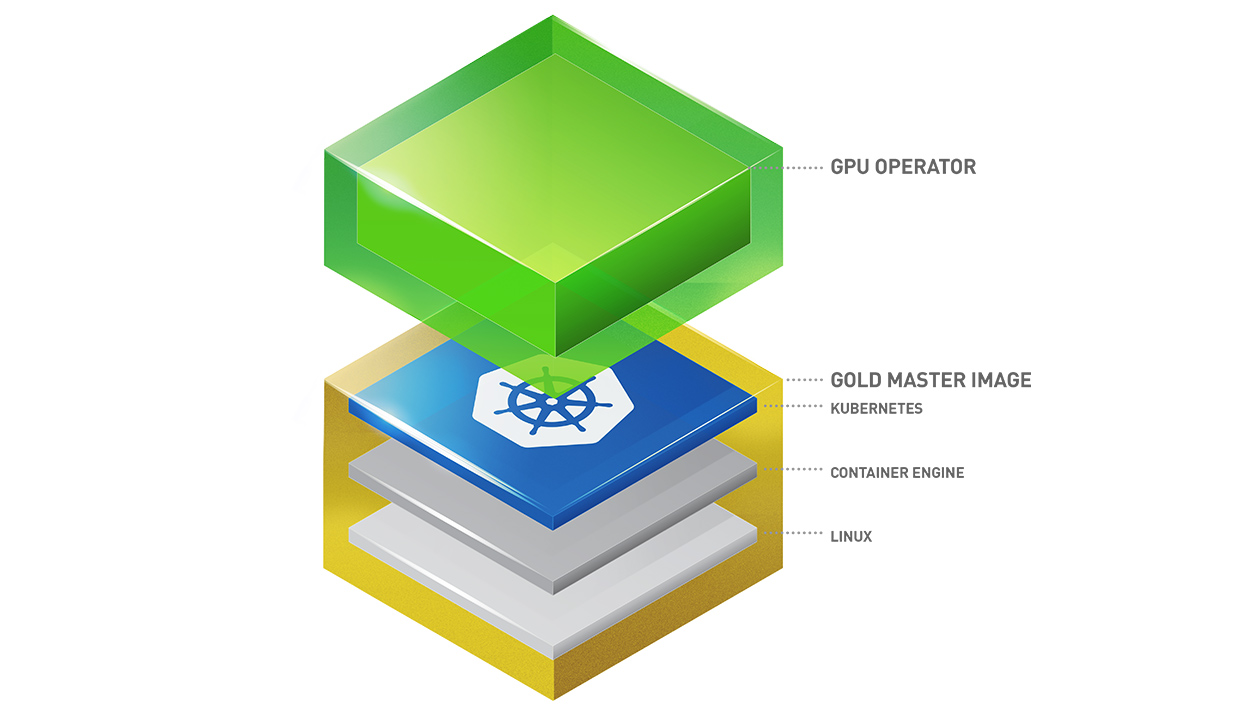
Setup only NVIDIA Operator, it’s totally contain all what you need for kubernetes work with your GPU via device-plugin. You can install that via multiple ways
- ArtifactHub and Helm Chart ⇒ Installation Guide
- GPU Operators Installation - Defined by
RKE2
To installation as helm method, you can follow these steps
- Add
helmrepo and update new one
helm repo add nvidia https://helm.ngc.nvidia.com/nvidia \
&& helm repo update- Install GPU Operator
Note
You can choose what ever version you want, but if you don’t set anyone, it will try to install the newest
For my experience, I will install GPU Operator at version Version v25.10.0 with couple new features. The step below will be installed GPU Operator in gpu-operator namespace with default configuration
helm install --wait --generate-name \
-n gpu-operator --create-namespace \
nvidia/gpu-operator \
--version=v25.10.0But if you want to delve more into the advantage configuration, I will recommend you to read more options at
- Common Chart Customization Options
- Running a Custom Driver Image
- Specifying Configuration Options for containerd
With RKE2 Kubernetes, you need to change the some containerd location because this type of cluster have own stuff containerd at PATH /var/lib/rancher/rke2 so why you can modify the toolkit.env for compatible
CONTAINERD_CONFIG: The path on the host to the top-levelcontainerdconfig file. Default at/etc/containerd/containerd.tomlCONTAINERD_SOCKET: The path on the host to the socket file used to communicate withcontainerd. Default at/run/containerd/containerd.sock
Others options, you will also have
RUNTIME_CONFIG_SOURCE: Container-toolkit uses when fetching the current containerd configurationRUNTIME_DROP_IN_CONFIG: The path on the host where the NVIDIA-specific drop-in config file will be created. Default at/etc/containerd/conf.d/99-nvidia.toml
helm install gpu-operator -n gpu-operator --create-namespace \
nvidia/gpu-operator $HELM_OPTIONS \
--version=v25.10.0 \
--set toolkit.env[0].name=CONTAINERD_CONFIG \
--set toolkit.env[0].value=/etc/containerd/containerd.toml \
--set toolkit.env[1].name=CONTAINERD_SOCKET \
--set toolkit.env[1].value=/run/containerd/containerd.sock \
--set toolkit.env[2].name=RUNTIME_CONFIG_SOURCE \
--set toolkit.env[2].value="command, file"Note
So why with RKE2, you need to set up with
CONTAINERD_CONFIG:/var/lib/rancher/rke2/agent/etc/containerd/config.tomlCONTAINERD_SOCKET:/run/k3s/containerd/containerd.sock
helm install --wait gpu-operator
-n gpu-operator --create-namespace
--set toolkit.env[0].name=CONTAINERD_CONFIG
--set toolkit.env[0].value=/var/lib/rancher/k3s/agent/etc/containerd/config.toml
--set toolkit.env[1].name=CONTAINERD_SOCKET
--set toolkit.env[1].value=/run/k3s/containerd/containerd.sock
--set toolkit.env[2].name=CONTAINERD_RUNTIME_CLASS
--set toolkit.env[2].value=nvidia
--set toolkit.env[3].name=CONTAINERD_SET_AS_DEFAULT
--set-string toolkit.env[3].value=true
nvidia/gpu-operatorRead more about this issue and configuration at GitHub - Problem installing gpu-operator on rke2
Warning
This version is including multiple things in there, so read configuration carefully and install because your Kubernetes can break out by this one with that contain so stuff to change your
Containerdconfigure of RKE2
Note
Also, this configuration will install
nvidia-container-toolkitandnvidia-container-runtimefor their own version at put in PATH/usr/local/nvidia/toolkit, maybe you can consider to set couple PATH in your configure to make sense it work in this place
You might encounter the Issue - Failed to initialize NVML: Unknown Error. This can impact container runtimes using systemd cgroup management, and a missing symlink will cause a crashloopback. To fix this, you can add a specific configuration to your gpu-operator value file
validator:
# Fix the issue: https://github.com/NVIDIA/gpu-operator/issues/430
# This bug impacts container runtimes configured with systemd cgroup management enabled
driver:
env:
- name: DISABLE_DEV_CHAR_SYMLINK_CREATION
value: "true"BTW, lasty you will operate GPU Operator successfully, and have fullstack of NVIDIA Ecosystem in Kubernetes, including these pods with several purpose
NAME READY STATUS RESTARTS AGE
gpu-feature-discovery-2vrtr 1/1 Running 0 21h
gpu-operator-1763710819-node-feature-discovery-gc-547cdf99sbw5j 1/1 Running 0 21h
gpu-operator-1763710819-node-feature-discovery-master-866fhnsvt 1/1 Running 0 21h
gpu-operator-1763710819-node-feature-discovery-worker-qsrtl 1/1 Running 0 21h
gpu-operator-84cfb55f6f-snllj 1/1 Running 0 21h
hami-device-plugin-2hjr2 2/2 Running 0 20h
hami-scheduler-66b9bbf544-ghbbh 2/2 Running 0 20h
nvidia-container-toolkit-daemonset-79qpg 1/1 Running 0 20h
nvidia-cuda-validator-jb77w 0/1 Completed 0 21h
nvidia-dcgm-exporter-8vvcm 1/1 Running 0 21h
nvidia-device-plugin-daemonset-b264b 1/1 Running 0 20h
nvidia-driver-daemonset-69grb 1/1 Running 0 21h
nvidia-operator-validator-x4mcw 1/1 Running 0 21h- gpu-feature-discovery: A software component that allows you to automatically generate labels for the set of GPUs available on a node. It leverages the Node Feature Discovery to perform this labeling.
- gpu-operator: the operator framework within Kubernetes to automate the management of all NVIDIA software components needed to provision GPUs. These components include the NVIDIA drivers (to enable CUDA), Kubernetes device plugin for GPUs, the NVIDIA Container Toolkit, automatic node labeling using GFD, DCGM based monitoring and others
- nvidia-container-toolkit: Allows users to build and run GPU accelerated Docker containers. The toolkit includes a container runtime library and utilities to automatically configure containers to leverage NVIDIA GPUs.
nvidia-cuda-validator: Run init container for double-check the cuda inside GPU Node- nvidia-dcgm-exporter: a set of tools for managing and monitoring NVIDIA GPUs in large scale linux based cluster environments
- nvidia-device-plugin: Allows you to automatically Expose the number of GPUs on each nodes of your cluster, Keep track of the health of your GPUs and Run GPU enabled containers in your Kubernetes cluster.
- nvidia-driver: a Kubernetes component which assists in seamless upgrades of the NVIDIA Driver on each node of the cluster. This component ensures that all pre-requisites are met before driver upgrades can be performed using NVIDIA GPU Driver.
- nvidia-operator-validator: The Validator for NVIDIA GPU Operator runs as a Daemonset and ensures that all components are working as expected on all GPU nodes.
HAMI for vGPU
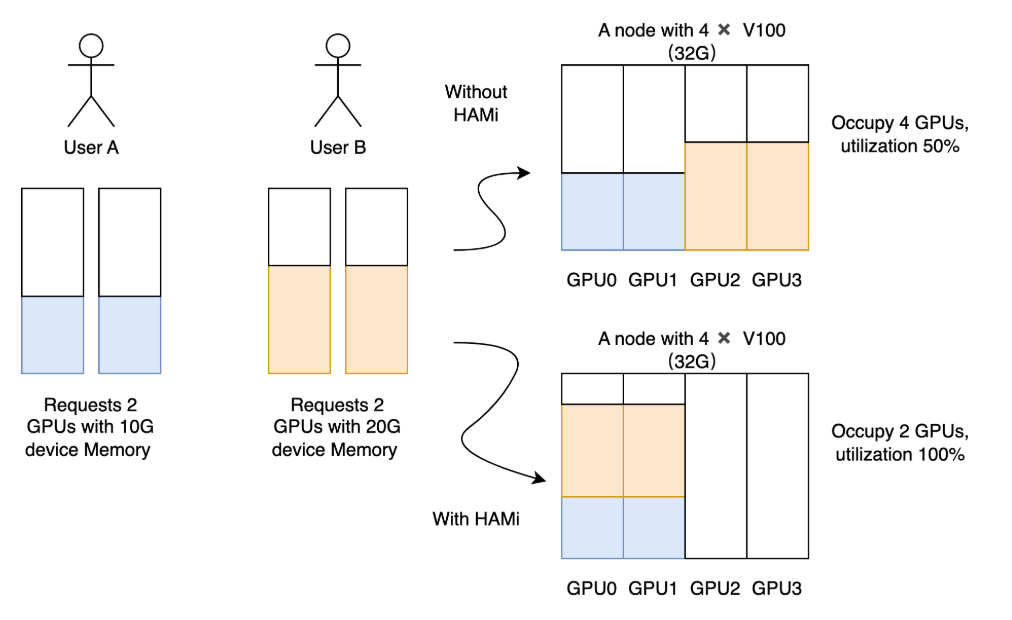
You can Install HAMI Helm Chart for support virtualization GPU inside Kubernetes environment (NOTE: If you want to use GPU efficiency, you need to think about HAMI in your techstack), HAMI will create own concept to work as device-plugin and scheduler for Kubernetes communicate with GPU
Before starting installation HAMI with helm, you should install some prerequisites of HAMI, such as nvidia-container-toolkit. Check more about installation at Installing the NVIDIA Container Toolkit
distribution=$(. /etc/os-release;echo $ID$VERSION_ID)
curl -s -L https://nvidia.github.io/libnvidia-container/gpgkey | sudo apt-key add -
curl -s -L https://nvidia.github.io/libnvidia-container/$distribution/libnvidia-container.list | sudo tee /etc/apt/sources.list.d/libnvidia-container.list
sudo apt-get update && sudo apt-get install -y nvidia-container-toolkitNext, you need to distinguish containerd of HAMI and RKE2, RKE2 will have own containerd with integrating inside RKE2 package and when installation, it will use this one to turn up services and for keeping work as expectation, it will require you to install runc and containerd with apt package, but in some situation, this work will not actually needed for except error you can do this stuff. Read more at: Getting started with containerd
sudo apt update && sudo apt install runc containerd -y🚨 When you configure Worker GPU, HAMI require you configure some node-label inside /etc/rancher/rke2/config.yaml
# Requirements
server: master-server # e.g: https://<ip>:9345
token: master-token # master token for joining cluster
node-ip: ip-server # IP address of agent
# Optional
node-label:
	- "env=dev"
# Require when you setup with HAMI
# Documentation: https://project-hami.io/docs/installation/prequisities#label-your-nodes
- "gpu=on"Now run rke2-agent service for create a manifest and configure file generated for agent and containerd
sudo systemctl start rke2-agentCopy exist file config.toml and overwrite with new one config.toml.tmpl, explore more at RKE2 - Configuring containerd, because containerd doesn’t recommend you edit directly inside config.toml, but you need edit inside config.toml.tmpl and it will automatically mapping your configuration
cp /var/lib/rancher/rke2/agent/etc/containerd/config.toml /var/lib/rancher/rke2/agent/etc/containerd/config.toml.tmplModify add new configuration for config.toml.tmpl for configuration hami, explore more at Hami - Prequisities Installation
# File generated by rke2. DO NOT EDIT. Use config.toml.tmpl instead.
version = 2

[plugins."io.containerd.internal.v1.opt"]
  path = "/var/lib/rancher/rke2/agent/containerd"
[plugins."io.containerd.grpc.v1.cri"]
  stream_server_address = "127.0.0.1"
  stream_server_port = "10010"
  enable_selinux = false
  enable_unprivileged_ports = true
  enable_unprivileged_icmp = true
  sandbox_image = "index.docker.io/rancher/mirrored-pause:3.6"

[plugins."io.containerd.grpc.v1.cri".containerd]
  snapshotter = "overlayfs"
  disable_snapshot_annotations = true
  default_runtime_name = "nvidia"


[plugins."io.containerd.grpc.v1.cri".containerd.runtimes.runc]
  runtime_type = "io.containerd.runc.v2"

[plugins."io.containerd.grpc.v1.cri".containerd.runtimes.runc.options]
  SystemdCgroup = true

[plugins."io.containerd.grpc.v1.cri".registry]
  config_path = "/var/lib/rancher/rke2/agent/etc/containerd/certs.d"

[plugins."io.containerd.grpc.v1.cri".containerd.runtimes]
	[plugins."io.containerd.grpc.v1.cri".containerd.runtimes.nvidia]
		privileged_without_host_devices = false
		runtime_engine = ""
		runtime_root = ""
		runtime_type = "io.containerd.runc.v2"
		[plugins."io.containerd.grpc.v1.cri".containerd.runtimes.nvidia.options]
		BinaryName = "/usr/bin/nvidia-container-runtime"
Restart containerd
sudo systemctl daemon-reload && systemctl restart containerdRestart rke2-agent to sync up again
sudo systemctl restart rke2-agentNote
Now you can get and watch the HAMI plugin install as demonset in your machine, if it start with
prehookcalledfail, don’t worry you should delete pod and it will work again
You should choose the HAMI version for compatible with NVIDIA Driver on your host
- v2.3.11 ⇒ nvidia-driver-535
- v2.5.2 - v2.6.0 ⇒ nvidia-driver-570
Read more about couple of things to successfully setup HAMI
- HAMI Helm Chart: Detail from value and template of HAMI
- Source Code Walkthrough of the GPU Pod Scheduling Process in HAMI
- Device sharing concept of HAMI
Use both NVIDIA Operator and HAMI
Warning
I don’t recommend this installation because manything will conflict each others when setup both platform in your Kubernetes Cluster
Both of this platform will use annotation to give signal for device-plugin talk with GPU for assign the task, and coincidence it have same annotation nvidia.com/gpu by default, it means two device-plugin of HAMI and NVIDIA will randomly handle scheduling GPU for your workloads
Like I told, NVIDIA Operator is such a good friend for setup all things related Nvidia, it will cut off the time to manual install each package but it will try to modify directly containerd and in somehow there will become conflict between of them, that’s tough and you need to consider to trade off
However, With confirm of limengxuan - Maintainer of HAMI in currently, he confirm we can try to modify or ignore device-plugin of NVIDIA, Read more at Issue - Mismatch vGPU Memory actual allocate for K8s Pods. Therefore, you should modify the values of HAMI and deploy again device-plugin if you want to use both of them. Follow modification below
## @section Global configuration
## @param global.imageRegistry Global Docker image registry
## @param global.imagePullSecrets Global Docker image pull secrets
global:
  ## @param global.imageRegistry Global Docker image registry
  imageRegistry: ""
  ## E.g.
  ## imagePullSecrets:
  ##   - myRegistryKeySecretName
  ## @param global.imagePullSecrets Global Docker image pull secrets
  imagePullSecrets: []
  imageTag: "v2.6.0"
  gpuHookPath: /usr/local
  labels: {}
  annotations: {}
  managedNodeSelectorEnable: false
  managedNodeSelector:
    usage: "gpu"

nameOverride: ""
fullnameOverride: ""
namespaceOverride: ""

#Nvidia GPU Parameters
resourceName: "hami.nvidia.com/gpu"
resourceMem: "hami.nvidia.com/gpumem"
resourceMemPercentage: "hami.nvidia.com/gpumem-percentage"
resourceCores: "hami.nvidia.com/gpucores"
resourcePriority: "hami.nvidia.com/priority"
In your pod, you can modify the resource with new annotation
resources:
	limits:
	  memory: 2Gi
	  hami.nvidia.com/gpu: '1'
	  hami.nvidia.com/gpumem: '3500'
	requests:
	  cpu: 200m
	  memory: 2Gi
Note
If you’re encountering issues after rebooting a GPU node, particularly when using HAMI and GPU Operator, refer to the “Reboot GPU Machine with HAMi” section for solutions. It’s highly recommended to perform a Node Maintenance operation in Kubernetes before rebooting to minimize errors when operating with both HAMI and GPU Operator.
Use both NVIDIA Operator and HAMI (New Updated 12/2025)

Note
This update stems from new provisioning work for Kubernetes. The focus is not on RKE2, as I am using various managed Kubernetes offerings from cloud providers. The goal is to successfully combine the functionality of HAMi and the NVIDIA GPU Operator without needing to separate them into distinct
containerdsetups, unlike what might be required with RKE2.
In this experiment, I am utilizing the latest versions of both HAMi and the NVIDIA GPU Operator:
- HAMi: Version 2.7.1
- GPU Operator: Version v25.10.0
I identified the potential for shared configuration because the nvidia-container-toolkit mounts and manages the /etc/containerd configuration directory within its pods. In a managed Kubernetes environment, it is highly likely that the host uses containerd and the configuration directory is indeed /etc/containerd. Upon deeper inspection of the configuration directory, I found that the settings are saved in /etc/containerd/conf.d/99-nvidia.toml. This file defines multiple runtimes beyond the default runc, including nvidia, nvidia-cdi, and nvidia-legacy. This variety of runtimes suggests a high degree of compatibility with solutions like HAMi. However, a critical piece often overlooked is the corresponding RuntimeClass definition in Kubernetes.
When you deploy the GPU Operator, it defines several RuntimeClass objects. You can verify these definitions using the following command:
kubectl get runtimeclasses.node.k8s.ioWith this runtime, it will attach to cluster-policy and let them have enough permission and information to pick runtime to setup GPU application, you can double-check with command
kubectl get clusterpolicies.nvidia.com cluster-policy -o yamlBut for different a bit, when I host the HAMi, I see you usually miss set the define runtimeclass is empty and it lead to multiple error, especially prehookcalledfail. So why I edit them from "" to nvidia for let it default run by the nvidia runtime class instead of normal one, because I believe that will let the device-plugin pods of HAMi see the GPU in application instead of the normal version (""). Explore this configuration at GitHub - HAMi Values with keyword runtimeClassName
Note
You also need to exchange the annotation
nvidia.comof HAMi to new one for examplehami.nvidia.comfor prevent the wrong reservation between HAMi and GPU Operator, which same as old operation.
Apply and now you will encounter the HAMi actually run but you need to take any change into containerd in host layer. You can double-check with command nvidia-smi in device-plugin and see it will have GPU inside for managing
kubectl exec --tty --stdin hami-device-plugin-xxxxx -c device-plugin -- nvidia-smiBut it doesn’t stop right there. In this feature of GPU Operator version 25.10, you can see the CDI is enable by default and it lead some problems when you testing the schedule with HAMi, check more about the Issue - CDI Injection: error modifying OCI spec: failed to inject CDI devices: unresolvable CDI devices. Before it become more stable or you find the compatible reason why to enable CDI, therefore recommend you disable them for preventing the error. Explore with couple of action in article ⇒ Container Device Interface (CDI) Support in the GPU Operator
kubectl patch clusterpolicies.nvidia.com/cluster-policy --type='json' \
    -p='[{"op": "replace", "path": "/spec/cdi/enabled", "value":false}]'
Note
You can disable this option inside your
values.yamlof GPU operator before your deploy them, it will prevent the misconception and allow you to schedule application with GPU
Testing GPU Scheduling (New Updated 12/2025)
BTW, you need do several experiment when you self-hosted any stuff in K8s and GPU is one of sophisticated one. However, I forgot to write a little bit more about this one, so here what I tested and you can take the experiment with them by these articles
For my circumstance, I will host these manifest for testing GPU Scheduling, including
- Testing the functionality of GPU (Quick Test) (Focus on: GPU Operator)
apiVersion: v1
kind: Pod
metadata:
  name: cuda-vectoradd
spec:
  restartPolicy: OnFailure
  containers:
  - name: vectoradd
    image: vcr.vngcloud.vn/81-vks-public/samples:vectoradd-cuda11.2.1
    resources:
      requests:
        memory: "64Mi"
        cpu: 100m
        nvidia.com/gpu: 1
      limits:
        memory: "128Mi"
        cpu: 200m
        nvidia.com/gpu: 1
  # Chose the node base on the label of Graphic Card, e.g: NVIDIA-A40
  nodeSelector:
nvidia.com/gpu.product: NVIDIA-A40- Testing schedule and hosting something for run in long time (Focus on: HAMi)
apiVersion: v1
kind: Pod
metadata:
  name: gpu-pod
#  annotations:
#    nvidia.com/use-gputype: "NVIDIA-A40"
spec:
  # Set another scheduler for HAMi, by default it will use `default-scheduler`
  schedulerName: "hami-scheduler" # hami-scheduler : default-scheduler
  # Setup the runtime `nvidia`, by default it doesn't set to help your pod can use lib of Nvidia, e.g: Cuda
  runtimeClassName: "nvidia"
  containers:
    - name: ubuntu-container
      image: ubuntu:18.04
      command: ["bash", "-c", "sleep 86400"]
      resources:
        limits:
          hami.nvidia.com/gpu: 1 # requesting 1 vGPUs
hami.nvidia.com/gpumem: 8000 # Each vGPU contains 10240m device memory (Optional,Integer)- Testing schedule and inference (Focus on: HAMi)
For inference task, I usually use Kokoro FastAPI - TTS Model to implement the deployment for testing with Kubernetes with great API, UI and using the new Pytorch Framework. You can apply this with manifest below
apiVersion: apps/v1
kind: Deployment
metadata:
  labels:
    app: kokoro-fastapi
  name: kokoro-fastapi
spec:
  replicas: 1
  selector:
    matchLabels:
      app: kokoro-fastapi
  strategy: {}
  template:
    metadata:
      labels:
        app: kokoro-fastapi
      # Set the PodAnnotation for specific GPU Type, e.g: A40
      annotations:
        nvidia.com/use-gputype: "A40"
    spec:
      # Setup with HAMI Scheduler
      schedulerName: "hami-scheduler"
      # Use the nvidia runtime
      runtimeClassName: "nvidia"
      containers:
      - image: ghcr.io/remsky/kokoro-fastapi-gpu:v0.2.4
        name: kokoro-fastapi-gpu
        resources:
          requests:
            cpu: 100m
            memory: 1Gi
          limits:
            # Give it 1 GPU with 5GB vRAM
            hami.nvidia.com/gpu: 1 # requesting 1 vGPUs
            hami.nvidia.com/gpumem: 5000 # Each vGPU contains 49152m device memory (Optional,Integer)
            memory: 5Gi
You can test the UI or API version by port forwarding the port of application by command
kubectl port-forward -n default deployments/kokoro-fastapi 8880:8880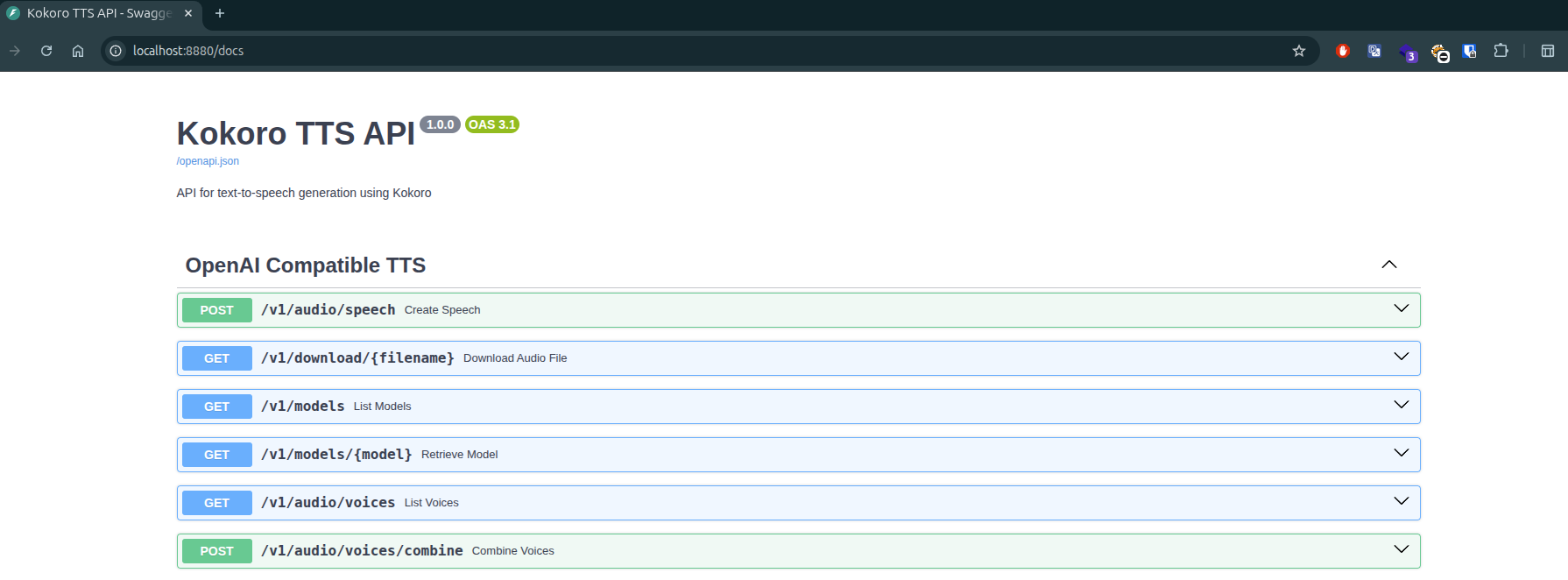
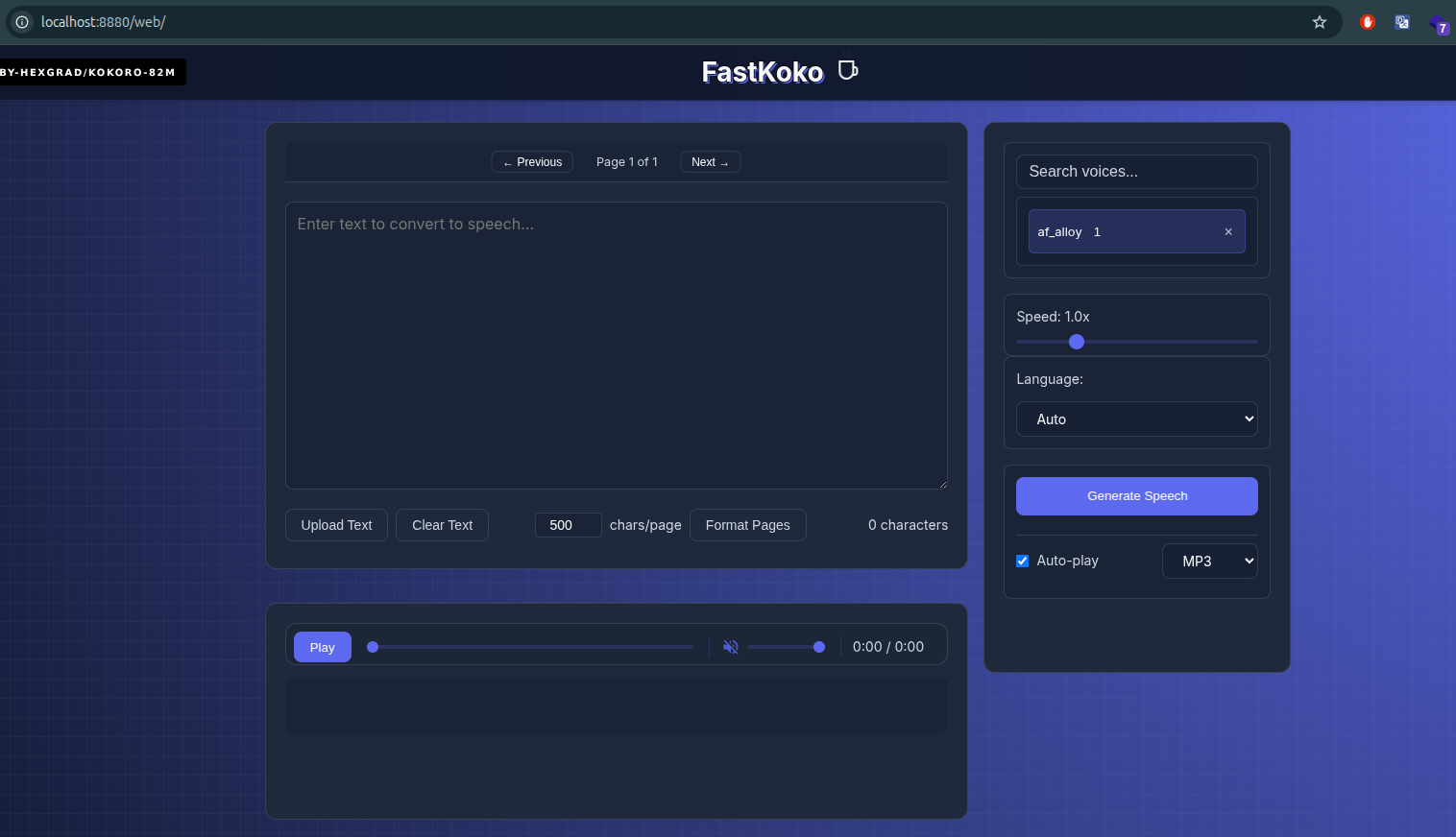
For view the resource reservation by HAMi, you can double-check them via nvidia-smi command in this deployment
k exec --tty --stdin deployments/kokoro-fastapi -c kokoro-fastapi-gpu -- nvidia-smi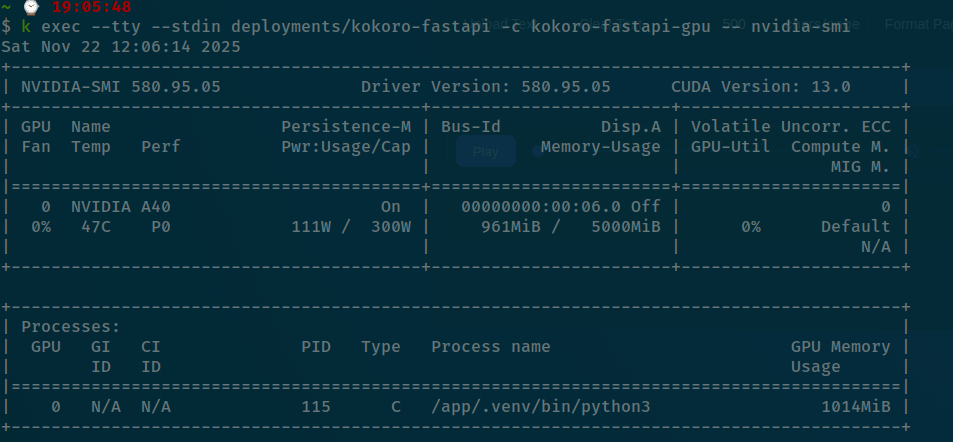
Success
Now, you can inference to testing your application successfully work with graphic card, and also HAMi give the AI Application GPU resource with right pre-define configuration, e.g: 5GB
Note of RKE2

Info
This is my personal checklist of key things I’ve learned about RKE2, along with some useful tips to make managing it easier, more streamlined, and even enjoyable. As I mentioned, RKE2 is a really powerful open-source tool, but it can present some complex management challenges.
Access the cluster
If you wanna to access cluster RKE2, you should read few configurations and issues to let you remove complex to connect your cluster, setup GitOps (e.g: flux or argocd), …
- RKE2 - Cluster Access
- Github Issue - error: Unable to connect to the server: x509: certificate is valid for …
As you know, RKE2 will write the kubeconfig file in /etc/rancher/rke2/rke2.yaml, so you can use this to connect directly inside your server host, it means if another tools outside the cluster, It won’t able to connect into Kubernetes Cluster. So how can we treat that ? If you read RKE2 - High Availability, you will aware about file created by own /etc/rancher/rke2/config.yaml before you start server or agent, that why we can add another domain, IP Address for let outside cluster can able communicate with KubeAPI inside RKE2 Cluster at tls-san
token: my-shared-secret
tls-san:
- my-kubernetes-domain.com # Domain Address
- another-kubernetes-domain.com # Another Domain Address
- 192.168.xx.xx # IP address
Note
As usual, that will require you configure into where you get certificate, as normal cluster, you can setup inside your master node, and in HA situations, you can set it up inside your master node used for fix registration
After you configuration, you will be able to connect your outside machine into Kubernetes Cluster, remember exchange IP Address to remote/public and open port 6443 to allow the conversation
GPU Problems
- Github Issue - Following gpu-operator documentation will break RKE2 cluster after reboot
- GitHub Issue - How to solve could not load NVML library: libnvidia-ml.so.1
About this problem, I do not pretty well with this case, and It becomes more complicated if you miss some configuration, but remember and check some situation if you missing or try to bypass when initialize cluster
Install driver for graphic card inside your host, especially libnvidia-ml.so.1, read more about RKE2 - Host OS requirements. There are some documentation for following
#!/bin/bash
sudo apt update
sudo apt install g++ freeglut3-dev build-essential libx11-dev libxmu-dev libxi-dev libglu1-mesa libglu1-mesa-dev -y
sudo add-apt-repository ppa:graphics-drivers/ppa -y
sudo apt-key adv --fetch-keys https://developer.download.nvidia.com/compute/cuda/repos/ubuntu2004/x86_64/3bf863cc.pub
echo "deb https://developer.download.nvidia.com/compute/cuda/repos/ubuntu2004/x86_64 /" | sudo tee /etc/apt/sources.list.d/cuda.list
sudo apt update
sudo apt install libnvidia-common-535 libnvidia-gl-535 nvidia-driver-535 -y
Double-check about your Nvidia Container Runtime, because I aware RKE2 configure this stuff in kinda strange way but in somehow your cluster run with not much affordable to edit your GPU node
# Check the version of nvidia-container-runtime
nvidia-container-runtime --version

# Check the configuration of nvidia-container-runtime
cat /etc/nvidia-container-runtime/config.toml
In some crazy situation, you won’t understand why your host miss runc in starting but your cluster run stable before node reboot again (Trust me, it really strange 😄)
# Install runc
sudo apt update
sudo apt install runc -y

# Double check runc version
runc --version
Double check and following requirement of HAMI - Prequisities
- Remember configure container-runtime with expectation of HAMI inside
containerdconfiguration at/var/lib/rancher/rke2/agent/etc/containerd/config.toml.tmpl - Add label
gpu=onon/etc/rancher/rke2/config.yamlto let your node reboot but without misconfiguration, because usually you will edit directly manifest withkubectlcommand
To use the HAMI, you can following the concept to configure your manifest of Kubernetes like using annotation to configure resource and gpu-types for workload used GPU, mostly AI Services. Supportive reservation resource been through HAMi
nvidia.com/gpuandnvidia.com/gpumem: Default support via GPU Operator
resources:
limits:
  nvidia.com/gpu: 1 # requesting 1 GPU
nvidia.com/gpumem: 3000 # Each GPU contains 3000m device memorynvidia.com/use-gputype: HAMi offer for help scheduler exactly GPU Types
In some situation, HAMI meet the error when split the GPU, you should restart daemonset running hami-device-plugin to let it retry the configuration again in GPU Node. Read more about Github Issue - HAMI 插件运行中出现显卡注册失败
Danger
I have an update on a common GPU problem that I want to share with you and the community. The issue is an Nvidia driver version conflict where the user-space tools (like nvidia-smi) have a different version than the Nvidia kernel module. This typically results in an error message:
Failed to initialize NVML: Driver/library version mismatch.Crucially, this driver mismatch can prevent Kubernetes (e.g., RKE2) from scheduling new application pods on the affected node, especially if those pods require GPUs. This is a significant operational disturbance.”
To resolve the problem, you can double-check in a couple of resolved
- StackOverFlow - Nvidia NVML Driver/library version mismatch (closed)
- Blog - 解决Driver/library version mismatch
- GPU Mart - Failed to initialize NVML: Driver/library version mismatch - Troubleshooting
The usual behavior to resolve this issue is rebooting system 🌟
sudo rebootTo ensure version, you can purge and install new nvidia-driver-* , libnvidia-common-* and libnvidia-gl-* for your host
# Check mismatch via dmesg
sudo dmesg | grep -e NVRM

# Check current nvidia package in your host (ubuntu)
dpkg -l | grep -i nvidia

# Check kernel version
cat /proc/driver/nvidia/version

# Find compatible (recommended) version
ubuntu-drivers devices

# Update to new version (e.g. 555 is compatible version)
sudo apt purge nvidia-*
sudo apt purge libnvidia-*
sudo apt autoremove
## Manual Update
sudo apt install libnvidia-common-555 libnvidia-gl-555 nvidia-driver-555 -y
## Automatic Update to recommended version
sudo ubuntu-drivers autoinstall

# For anything workwell reboot is obligatory
sudo reboot
To prevent the sudden upgrade (NOTE: I met issue and dunno the reason why 😰), you have two methods to handle this case but still keep same idea, blocking sudden update. Explore more at: Tecmint - How to Disable Package Updates in Ubuntu, Debian and Mint
-
Use the
apt-holdfunction to keep not update related# version_number is your nvidia version # e.g: 535 or 555 sudo apt-mark hold nvidia-dkms-version_number sudo apt-mark hold nvidia-driver-version_number sudo apt-mark hold nvidia-utils-version_number -
Make a change in
apt.conf.d(Suggest by my colleague)sudo nano /etc/apt/apt.conf.d/50unattended-upgrades Unattended-Upgrade::Package-Blacklist { // The following matches all packages starting with linux- // "linux-"; //Added 20230822 "linux-generic"; "linux-image-generic"; "linux-headers-generic"; "nvidia-"; "libnvidia-"; "*nvidia*"; };
Remove Node and Join again
Warning
If you understand the implications of uninstalling a node, you’re welcome to try my tips. Nevertheless, I offer no guarantees about the correctness of these suggestions, particularly concerning actions that the RKE2 developers advise against 🚑.
To uninstall node, you can follow the RKE2 - Uninstall to give you exactly way to clean RKE2. But remember, you will erase all scripts, datas and anything else inside Kubernetes Cluster related that Node, so you need to
- Backup your data, especially
etcd,database, orpvyou created via storageclass, likeceph,longhorn, … - If you use
longhorn, remember kickoff the replica of yourPVinside that node before uninstalling - Drain your node before doing anything else related node layer, because it really complicated and increase more problems if you won’t
- Run
rke2-killall.shto kill all process exist in your node, before userke2-uninstall.sh
Info
Now your RKE2 already prune, and you can install a new node again. This one is good behavior in some situation, you can’t save your node
But there are trick I found when remove a node with kubectl, this can help you join master and agent again with same name inside Cluster, before that read these
- Github Issue - RKE2 re-register existing nodes
- Suse - How to re-add a Master node to the RKE2 HA cluster once its removed from cluster.
If you have read the Advanced Docs - How Agent Node Registration Works, you can see after node join into cluster, it use password generated to join a node, It means when you delete node out will kubectl, that led password not valid and you can able to remove it at /etc/rancher/node/password and you can rerun service again, especially agent to join your node again
But master is using embedded etcd inside cluster, especially HA Cluster, you should backup version before you do anything else. So remove db etcd to led you reset your cluster and your node password like above to join again into cluster
# remove etcd db
rm -rf /var/lib/rancher/rke2/server/db

# remove password
rm -rf /etc/rancher/node/password
You think that already enough to start, forget it, you need to create two files inside new db directory, especially you remove node out of cluster with kubectl (NOTE: You can use Backup and Restore feature if you don’t remove your master node out of cluster). There are two file, include
/var/lib/rancher/rke2/server/db/etcd/config-etcdconfiguration/var/lib/rancher/rke2/server/db/etcd/member- name ofetcd
Because you remove node, it means you can’t use name of etcd exist node to join into Raft Architecture, you should rename it inside two file (NOTE: I generate random 6 non’t uppercase and number character) and now you can bring up again
client-transport-security:
  cert-file: /var/lib/rancher/rke2/server/tls/etcd/server-client.crt
  client-cert-auth: true
  key-file: /var/lib/rancher/rke2/server/tls/etcd/server-client.key
  trusted-ca-file: /var/lib/rancher/rke2/server/tls/etcd/server-ca.crt
data-dir: /var/lib/rancher/rke2/server/db/etcd
election-timeout: 5000
experimental-initial-corrupt-check: true
experimental-watch-progress-notify-interval: 5000000000
heartbeat-interval: 500
listen-client-http-urls: https://127.0.0.1:2382
listen-client-urls: https://127.0.0.1:2379,https://<host-ip>:2379
listen-metrics-urls: http://127.0.0.1:2381
listen-peer-urls: https://127.0.0.1:2380,https://<host-ip>:2380
log-outputs:
- stderr
logger: zap
name: name-of-your-master # That should match with value in member file
peer-transport-security:
  cert-file: /var/lib/rancher/rke2/server/tls/etcd/peer-server-client.crt
  client-cert-auth: true
  key-file: /var/lib/rancher/rke2/server/tls/etcd/peer-server-client.key
  trusted-ca-file: /var/lib/rancher/rke2/server/tls/etcd/peer-ca.crt
snapshot-count: 10000
If you wanna restart the state, I concern about that really difficult because your change name of etcd and usually that not make sense, I will try to involve this backup when I understand what etcd saving, but now you can bring up master node with empty etcd because you are setup in HA Cluster and that will not break anything (NOTE: Remember It just work with HA Cluster, do not use this way for normal cluster with only one master)
sudo systemctl start rke2-serverRotation Certificate
Warning
For improved security, RKE2 automatically sets certificate expiry to 12 months. Neglecting this aspect can lead to significant problems: your
kube-apiwill become unavailable, and your applications might fail. This is why awareness and proper handling of certificate lifecycles are essential when working with RKE2.
Info
If the certificates are expired or have fewer than 90 days remaining before they expire, the certificates are rotated when RKE2 is restarted.
But usually, you can handle on this stuff manually because rke2 support us the command to handle this, before go to walkthrough, you should check documentation about this
- RKE2 - Certificate Rotation
- Blog - Rotating RKE2 Certificates Before Expiration: A Necessary Practice (Careful when use
rke2-killall.shin this articles)
To monitoring your RKE2 Certificate, you have two ways to retrieve that
- Monitoring RKE2 Certs with x509-certificate-exporter
- Use script below in your host to check this
#!/bin/bash

if [[ -d "/var/lib/rancher/rke2/server/tls" ]]; then
  dir="/var/lib/rancher/rke2/server/tls"
elif [[ -d "/var/lib/rancher/rke2/agent/tls" ]]; then
  dir="/var/lib/rancher/rke2/agent/tls"
else
dir="/var/lib/rancher/rke2/agent/"
fi
# Loop through each .crt file in the directory
for file in "$dir"/*.crt; do
# Extract the expiry date from the certificate
expiry=$(openssl x509 -enddate -noout -in "$file" | cut -d= -f 2-)
# Get the file name without the path
filename=$(basename "$file")
# Print the filename and expiry date in a pretty format
printf "%-30s %s\n" "$filename:" "$expiry"
done
Now If you take care all of this, you rotation node depend what you want
# Stop rke2-agent or rke2-server before rotation
sudo systemctl stop rke2-server # rke2-agent dangerous I prefer to restart it only

# Run rotation
rke2 certificates rotate

# Start again
sudo systemctl start rke2-server
Warning
But remember
rke2-killall.shwill remove all service or process alive than we only stop service and another container keep continue run in this maintain progress
Note
If two of your three master nodes have expired certificates, you must manually rotate the certificates on those two. etcd requires this for HA clusters to function correctly and avoid nodes getting stuck during startup.
Furthermore, if you have issues with
kube-api-serverorkube-proxy(like logging or connection problems), try restarting therke2-agentservice on the affected node. This won’t disrupt running pods.
BTW, you can rotate the individual service by passing the --service flag, it means you can rotate certificate for specific things you want (NOTE: That’s good behavior for not corrupting the huge cluster). Read more about RKE2 - Certificate Management
Warning
After rotation, you should check if the activity on your worker is normal. If not, take your time to restart your worker using the
sudo systemctl restart rke2-agentcommand to avoid causing errors or corrupting your pods.
Container Services in RKE2
Info
Regarding service management, I’ve observed a positive behavior in RKE2: you can make certain configurations on a node without disrupting the services running within it. Here are some best practices to help you protect your production environment.
Because I already read this about Author of RKE2 about Github Issue - Containers from old version of RKE2 persist even after upgrade and multiple restarts of rke2-agent/server
Info
Containers are intentionally left running when RKE2 is restarted, including when RKE2 is restarted for an upgrade. This allows for minimally disruptive upgrades, as there is no reason that pods should be terminated just because the rke2 service is stopped. This behavior is shared with standalone containerd; stopping the containerd service does not stop the containers themselves.
Containers started prior to the upgrade, whose configuration is not affected by the upgrade, will continue to run until some external change requires them to be stopped and/or restarted.
If I try to discovery more about RKE2 - FIPS 140-2 Enablement, you can see that stack via each level inside RKE2 Node
- etcd
- containerd
    - containerd-shim
    - containerd-shim-runc-v1
    - containerd-shim-runc-v2
    - ctr
- crictl
- runc
That make sense and help you understand more clear about structure of RKE2 want you make sort of change inside Cluster, that led cause service restart, but if your RKE2 Stop for some reason, your service will already good, but aware off a bit that help you about containerd restart, and it doesn’t mean your container restart (NOTE: Good behavior of RKE2 🔥)
But if you want to increase more HA, you should configure KeepAlive inside node to handle traffic, I prefer from 2 node above because that help you not corruption traffic and give you a chance to understand more about system before setup for another. Following some tutorial below
- IBM - Keepalived and HAProxy
- Kubesphere - Set up an HA Kubernetes Cluster Using Keepalived and HAproxy
- Git - Running a load balancer for RKE2 api-server and nginx ingress controller using Keepalived and HAProxy in static pods
Reboot GPU Machine with HAMi 🌟
Warning
Resolving issues with RKE2 clusters, particularly concerning the GPU Agent, can be difficult. A frequent problem encountered is the RKE2 Agent initiating successfully yet subsequently retrying multiple times, resulting in operational instability. When faced with this, two primary approaches are available:
- Completely uninstall and then reinstall the components. Although a potential solution, this method carries inherent risks, especially if prior attempts were made without a full understanding of alternative strategies.
- Maintain the existing installation and instead implement specific configuration adjustments to return the cluster to a stable operating condition. Details are provided below.
So I met some troubles with GPU node because apt package try to compile a new module of NVIDIA driver for kernel, and it’s making disturb for deployment via Kubernetes Layer. That’s reason why I should be fix NVIDIA, explore more at my note GPU Problems above and restart the node is obligatory in this maintenance
What is waiting for me it’s truly coming and I guess this problem will be occur because I already use option 1, uninstall an reinstall node in RKE2 Cluster. So in this time, It’s production and I don’t know what things I faces off when I do it in this environment. Before I read this GitHub Issue - Following gpu-operator documentation will break RKE2 cluster after reboot, It gives me some idea when you actually now what RKE2 Actual work
If you read my note about Container Services in RKE2 above and the issue, you will understand RKE2 will separate two process to running container with separate containerd, and you can get that distinguish
- RKE2 installs its
containerdand other binaries (likekubectl) in paths such as/var/lib/rancher/rke2/binand/var/lib/rancher/rke2/data/v1.xx.xx/bin. These are not exported to your $PATH because they’re primarily for RKE2’s internal components, likekube-proxy, CNI, and Ingress, and it uses a specific socket at/run/k3s/containerd.sock. - If you opt for the HAMI solution, you’ll install a separate host
containerdat/usr/bin, which is typically included in your $PATH. In some cases,runcandcontainerdmight even disappear from your host after a reboot, especially if RKE2’s agent interferes. For installation details, explore Containerd - Getting Started. This hostcontainerduses its socket at/run/containerd/containerd.sockand is configured via/etc/containerd/config.yaml.
Now you know why, I will try to clarify it into each sentences
- RKE2 uses the host’s
containerdfor initial setup, but then runs its owncontainerdinstance for services. This can cause configuration conflicts when updates occur. When newcontainerdconfigurations are applied,config.tomlandconfig.toml.tmplare synchronized. Essential Kubernetes components likekube-proxy, CNI, and Ingress are typically already running smoothly at this stage, indicating that twocontainerdprocesses are involved in managing the deployment. - Reboot Issues: Upon reboot, all RKE2 Kubernetes components must restart. However, RKE2’s
containerdthen depends onnvidia-container-runtime, but the default application won’t run withnvidia-runtime. This preventskube-proxyand the CNI from starting (if my understanding is correct), which in turn stops theGPU-Operatorfrom initializing. This absence of critical networking components causes theGPU-Operator(necessary fornvidia-container-runtimeto function) to crash. (NOTE: You can read and see the config in GPU Machine with GPU Operator and HAMI to see what different between of them)
Here why I pop up the idea to restore anything in set configuration. Let’s me try to introduce the walkthrough
You should stop the rke2-agent for maintaining, yes it will cause a downtime but if you have well off resources for maintaining, you should drain node before doing and prevent to cause anything downtime for your service. But like I told rke2-agent stop doesn’t mean your service already run stop (But in my case, reboot machine and it cause downtime 😄)
sudo systemctl stop rke2-agentNow you should kill all service, which one running in rke2-agent with predefine script rke2-killall.sh
sudo rke2-killall.shThis step will ensure, there aren’t container running in error containerd state
Now you can finish the maintenance by removing config.toml and config.toml.tmpl to turn your rke2-agent and containerd into default configuration
cd /var/lib/rancher/rke2/agent/etc/containerd
rm -rf config.toml config.toml.tmpl
Now you can create a default config.toml which generated by rke2, and copy the code down below, there are two version, one for CPU and one for GPU, but CPU version also work with GPU with no doubt
nano config.toml# File generated by rke2. DO NOT EDIT. Use config.toml.tmpl instead.
version = 2
[plugins."io.containerd.internal.v1.opt"]
path = "/var/lib/rancher/rke2/agent/containerd"
[plugins."io.containerd.grpc.v1.cri"]
stream_server_address = "127.0.0.1"
stream_server_port = "10010"
enable_selinux = false
enable_unprivileged_ports = true
enable_unprivileged_icmp = true
sandbox_image = "index.docker.io/rancher/mirrored-pause:3.6"
[plugins."io.containerd.grpc.v1.cri".containerd]
snapshotter = "overlayfs"
disable_snapshot_annotations = true
[plugins."io.containerd.grpc.v1.cri".containerd.runtimes.runc]
runtime_type = "io.containerd.runc.v2"
[plugins."io.containerd.grpc.v1.cri".containerd.runtimes.runc.options]
SystemdCgroup = true
[plugins."io.containerd.grpc.v1.cri".registry]
config_path = "/var/lib/rancher/rke2/agent/etc/containerd/certs.d"Alright, you can start rke2-agent for let’s it initialize import part of it, like kube-proxy, cni, ingress, …
sudo systemctl start rke2-agentValidate it after waiting few seconds to minute, ensure you should see kube-proxy, cni actually run to make the next configuration
kubectl get pods -n kube-systemNow, you can do same behavior when you create GPU node with modify containerd, so I will create a config.toml.tmpl with below file
nano config.toml.tmpl# File generated by rke2. DO NOT EDIT. Use config.toml.tmpl instead.
version = 2
[plugins."io.containerd.internal.v1.opt"]
path = "/var/lib/rancher/rke2/agent/containerd"
[plugins."io.containerd.grpc.v1.cri"]
stream_server_address = "127.0.0.1"
stream_server_port = "10010"
enable_selinux = false
enable_unprivileged_ports = true
enable_unprivileged_icmp = true
sandbox_image = "index.docker.io/rancher/mirrored-pause:3.6"
[plugins."io.containerd.grpc.v1.cri".containerd]
snapshotter = "overlayfs"
disable_snapshot_annotations = true
default_runtime_name = "nvidia"
[plugins."io.containerd.grpc.v1.cri".containerd.runtimes.runc]
runtime_type = "io.containerd.runc.v2"
[plugins."io.containerd.grpc.v1.cri".containerd.runtimes.runc.options]
SystemdCgroup = true
[plugins."io.containerd.grpc.v1.cri".registry]
config_path = "/var/lib/rancher/rke2/agent/etc/containerd/certs.d"
[plugins."io.containerd.grpc.v1.cri".containerd.runtimes]
[plugins."io.containerd.grpc.v1.cri".containerd.runtimes.nvidia]
privileged_without_host_devices = false
runtime_engine = ""
runtime_root = ""
runtime_type = "io.containerd.runc.v2"
[plugins."io.containerd.grpc.v1.cri".containerd.runtimes.nvidia.options]
BinaryName = "/usr/bin/nvidia-container-runtime"Restart containerd
sudo systemctl daemon-reload && systemctl restart containerdRestart rke2-agent to sync up again
sudo systemctl restart rke2-agentNote
Your host will run like expectation, I give a try and that work in my case and your case if you meet this problem, RKE2 at version
1.27.11r1. One upon again, the issue give my idea and I feel really appreciate and thankful for RKE2 Community
GPU Machine with GPU Operator and HAMI 🌟
If you install GPU Operator with HAMI in your node, you can see what different between the config.toml before and after GPU Operator modifies it
# File generated by rke2. DO NOT EDIT. Use config.toml.tmpl instead.

version = 2

[plugins."io.containerd.internal.v1.opt"]
  path = "/var/lib/rancher/rke2/agent/containerd"
[plugins."io.containerd.grpc.v1.cri"]
  stream_server_address = "127.0.0.1"
  stream_server_port = "10010"
  enable_selinux = false
  enable_unprivileged_ports = true
  enable_unprivileged_icmp = true
  sandbox_image = "index.docker.io/rancher/mirrored-pause:3.6"

[plugins."io.containerd.grpc.v1.cri".containerd]
  snapshotter = "overlayfs"
  disable_snapshot_annotations = true


[plugins."io.containerd.grpc.v1.cri".containerd.runtimes.runc]
  runtime_type = "io.containerd.runc.v2"

[plugins."io.containerd.grpc.v1.cri".containerd.runtimes.runc.options]
  SystemdCgroup = true

[plugins."io.containerd.grpc.v1.cri".registry]
  config_path = "/var/lib/rancher/rke2/agent/etc/containerd/certs.d"
[plugins."io.containerd.grpc.v1.cri".containerd.runtimes."nvidia"]
runtime_type = "io.containerd.runc.v2"
[plugins."io.containerd.grpc.v1.cri".containerd.runtimes."nvidia".options]
BinaryName = "/usr/local/nvidia/toolkit/nvidia-container-runtime"
SystemdCgroup = trueIt changes the run time for containerd to nvidia with runc and use own nvidia-container-runtime at PATH /usr/local/nvidia/toolkit/nvidia-container-runtime, therefore if you keep your configure that will work perfectly but their something wrong at here
Because this own PATH of GPU Operator not expose in PATH, it means if rke2 call the nvidia-container-runtime, it should be expose to PATH in your user who install RKE2 if you use external GPU Scheduler like HAMI, and it cause error when your node reboots with conflict of /etc/containerd/config.toml and /var/lib/rancher/rke2/agent/etc/containerd/config.toml for both containerd.
You can also double-check the /etc/containerd/config.toml is already modify by something to use /usr/local/nvidia/toolkit and I guess GPU Operator do this stuff
version = 2

[plugins]

  [plugins."io.containerd.grpc.v1.cri"]

    [plugins."io.containerd.grpc.v1.cri".containerd]
      default_runtime_name = "nvidia"

      [plugins."io.containerd.grpc.v1.cri".containerd.runtimes]

        [plugins."io.containerd.grpc.v1.cri".containerd.runtimes.nvidia]
          privileged_without_host_devices = false
          runtime_engine = ""
          runtime_root = ""
          runtime_type = "io.containerd.runc.v2"

          [plugins."io.containerd.grpc.v1.cri".containerd.runtimes.nvidia.options]
            BinaryName = "/usr/local/nvidia/toolkit/nvidia-container-runtime"

        [plugins."io.containerd.grpc.v1.cri".containerd.runtimes.nvidia-cdi]
          privileged_without_host_devices = false
          runtime_engine = ""
          runtime_root = ""
          runtime_type = "io.containerd.runc.v2"

          [plugins."io.containerd.grpc.v1.cri".containerd.runtimes.nvidia-cdi.options]
            BinaryName = "/usr/local/nvidia/toolkit/nvidia-container-runtime.cdi"

        [plugins."io.containerd.grpc.v1.cri".containerd.runtimes.nvidia-experimental]
          privileged_without_host_devices = false
          runtime_engine = ""
          runtime_root = ""
          runtime_type = "io.containerd.runc.v2"

          [plugins."io.containerd.grpc.v1.cri".containerd.runtimes.nvidia-experimental.options]
            BinaryName = "/usr/local/nvidia/toolkit/nvidia-container-runtime.experimental"

        [plugins."io.containerd.grpc.v1.cri".containerd.runtimes.nvidia-legacy]
          privileged_without_host_devices = false
          runtime_engine = ""
          runtime_root = ""
          runtime_type = "io.containerd.runc.v2"

          [plugins."io.containerd.grpc.v1.cri".containerd.runtimes.nvidia-legacy.options]
            BinaryName = "/usr/local/nvidia/toolkit/nvidia-container-runtime.legacy"
It make sense when it become conflict with runtime nvidia but default stuff of RKE2 won’t start with this runtime, so turn it back in default is best choice. Also, HAMI will use the nvidia-container-runtime and nvidia-container-toolkit in PATH, so if you want to prevent the error, export /usr/local/nvidia/toolkit to global $PATH is one of the important things. Read more at Setup Global environment for multiple users and solution
Conclusion

Success
That’s all for this weekend. It’s been a lot to learn and remember, so I’ve documented some of my learning journey with RKE2, including tips, tricks, and configuration insights for setting up a complete Kubernetes cluster using RKE2 and Rancher. I hope this article provides you with valuable information and inspires you to enhance your security, self-host effectively, and explore more exciting possibilities with RKE2.
Quote
Wrapping this up over the holiday! This article turned out to be quite substantial, and maybe even a bit overwhelming in its depth. I’d been planning to write this for a while, but it took four months of hands-on experience with
RKE2before I felt confident enough to share my insights. It’s been a rewarding experience – challenging at times, but incredibly enriching. I’m proud of what I’ve learned and how I can now leverage RKE2 😄. So, stay safe out there, keep that learning momentum going, and I’ll catch you all next weekend. Remember to check my bi-weekly update this week. Farewell! 🙌